How to Add a Like and Subscribe Animation to Your Video
3 min read
A like and subscribe animation is a short button prompt that reminds viewers to like the video, subscribe and turn on the bell. A cursor clicks each button, so people see exactly what to do.
The quickest way to add one is to drop a finished overlay on your timeline. Here's how, plus how to put your own channel on it and which sound to use.
1. Drop an overlay into your timeline
These overlays are transparent .mov files, so there is no green screen to key out.
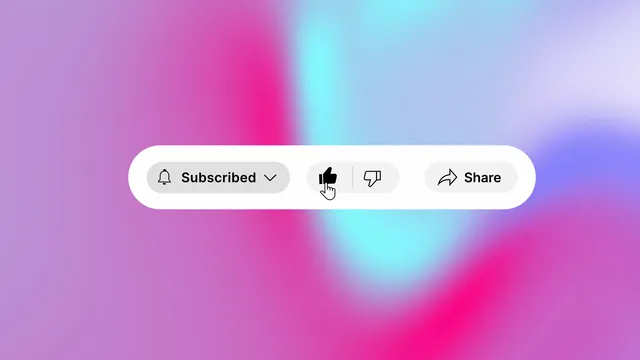
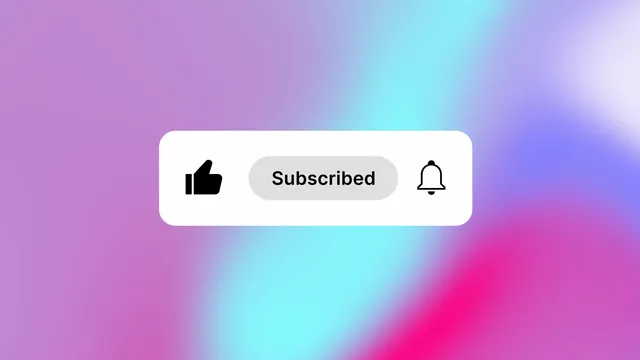
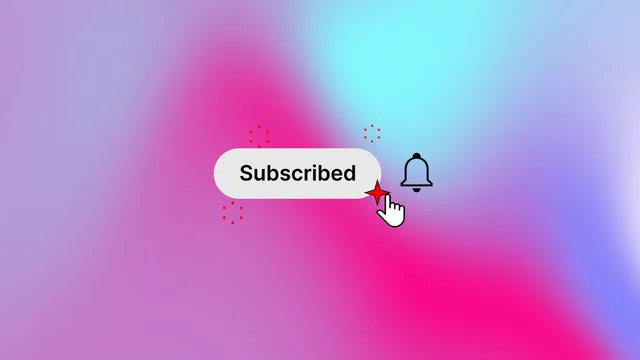
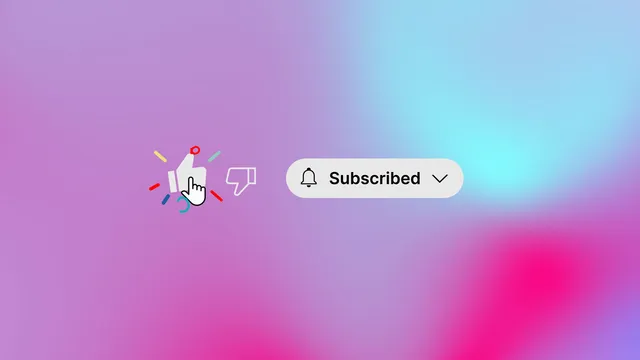
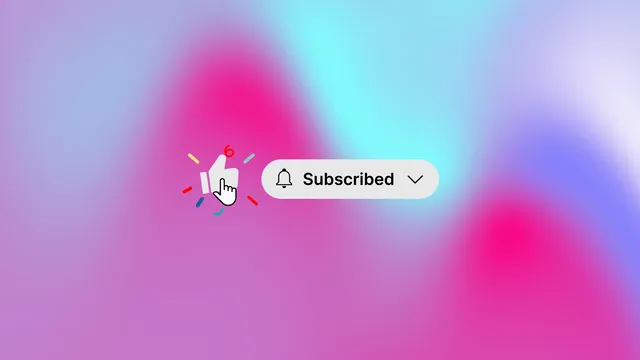
- Download an overlay and import it into your editor.
- Put it on the track above your footage at the moment you ask people to subscribe.
- Trim it if you need to. Each overlay runs 8 seconds.
In DaVinci Resolve, if the background turns black, right-click the clip in the Media Pool, open Clip Attributes and set Alpha Mode to Premultiplied.
2. Want your channel name or colors? Use a template
Overlays are finished videos, so their buttons and colors are fixed. Templates are editable: type your channel name in any language, drop in your logo, switch between light and dark themes, and change the colors and size.
There are templates for After Effects, Premiere Pro and DaVinci Resolve.
- Download a template for your editor.
- Import it straight into your timeline, above your footage where you ask people to subscribe.
- Edit it right there with simple controls: the text, the logo, the theme and the colors.
The YouTube Like and Subscribe Button Overlay template is free with an account.


3. Add a sound effect
A click on each button and a ding on the bell make the prompt hard to miss. The After Effects templates already have their sounds in place, so add these to the overlays.
Try one of these:
Find more in interface clicks and notifications and bells.
Make it yourself
All you need is a red Subscribe button, a gray Subscribed button and a cursor, all with transparent backgrounds.
| After Effects | Premiere Pro | DaVinci Resolve |
|---|---|---|
| 1. Go to File > Import and bring in the three images (SVG works in After Effects 2026 and newer). Stack them in your composition with the cursor on top. | 1. Premiere Pro can't import SVG, so use PNG images. Go to File > Import and put each one on its own track above your footage, with the cursor on top. | 1. The Media Pool doesn't take SVG, so use PNG images. Drag them into the Media Pool, then onto their own tracks above your footage, with the cursor on top. |
| 2. Select the Subscribe button and press P for Position. Keyframe it from off screen to its spot over about 10 frames. | 2. Select the Subscribe clip and open Effect Controls > Motion > Position. Keyframe it from off screen to its spot over about 10 frames. | 2. Select the Subscribe clip and open Inspector > Transform > Position. Keyframe it from off screen to its spot over about 10 frames. |
| 3. Keyframe the cursor's Position onto the button. On the click, press S and take Scale from 100% to 90% and back over 6 frames. | 3. Keyframe the cursor's Position onto the button. On the click, take Motion > Scale from 100 to 90 and back over 6 frames. | 3. Keyframe the cursor's Position onto the button. On the click, take Transform > Zoom from 1.0 to 0.9 and back over 6 frames. |
| 4. Start the Subscribed layer on the click frame (Alt+[, Mac: Option+[, trims it to the playhead). Select the keyframes and press F9 for Easy Ease. | 4. Start the Subscribed clip on the click frame. Right-click the keyframes and choose Temporal Interpolation, then Ease In or Ease Out. | 4. Start the Subscribed clip on the click frame. Right-click each keyframe diamond and choose Ease In and Out. |
Questions people ask
Is there a free like and subscribe animation?
Yes. The YouTube Like and Subscribe Button Overlay template for After Effects is free with a MotionVault account.
How do I add a like and subscribe animation in CapCut?
On desktop, place the clip on a track above your video where you ask people to subscribe. On mobile, tap Overlay, then Add overlay, and move it to that moment.
Where should the subscribe animation go in my video?
Put it where you ask people to subscribe, often right after your intro or at the end. Keep it under 10 seconds so it doesn't cover your video for long.