How to Make a Typewriter Effect in Premiere Pro, DaVinci Resolve and After Effects
By Gokul Ramesh3 min read
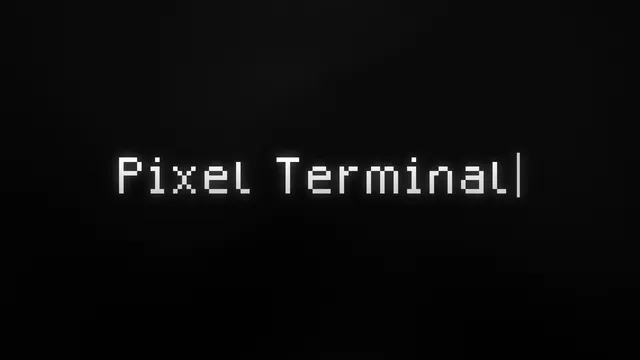
A typewriter effect shows your text one letter at a time, as if someone is typing it on screen. All three big editors can do it without plugins now.
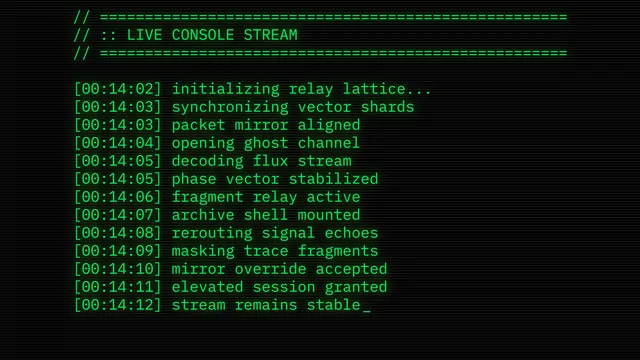
Below is the built-in way in each one. If you want a finished look, like a green CRT screen or a hacker console with a blinking cursor, there are ready-made templates under each one.
Typewriter effect in Premiere Pro
Premiere Pro 25.5 and later has one built in.
- Type your line with the Type tool (T).
- In the Effects panel, search for "typewriter" and drag Typewriter Impacts onto the start of the text clip.
- Drag the end of the transition to set how long the typing takes. Select it and open Effect Controls for the cursor and blink options.
Want a styled version? These Premiere Pro templates are .mogrt files with the cursor, glow and screen look already set up.
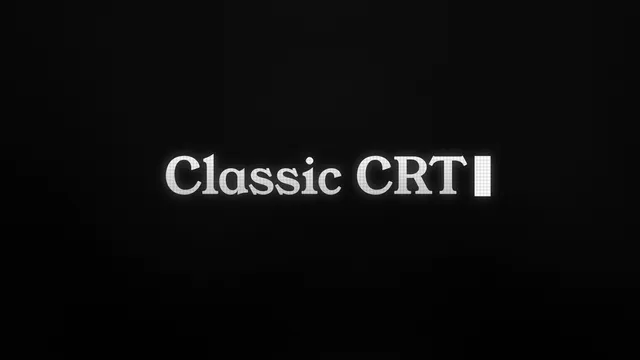
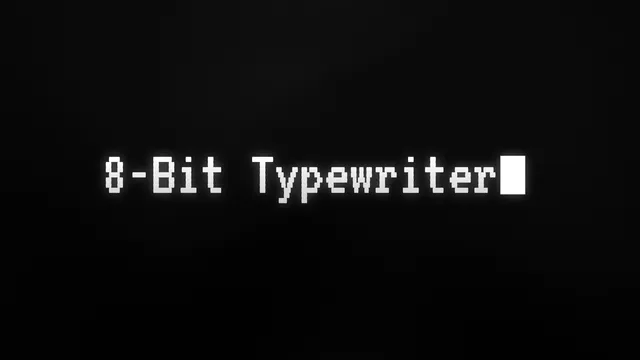
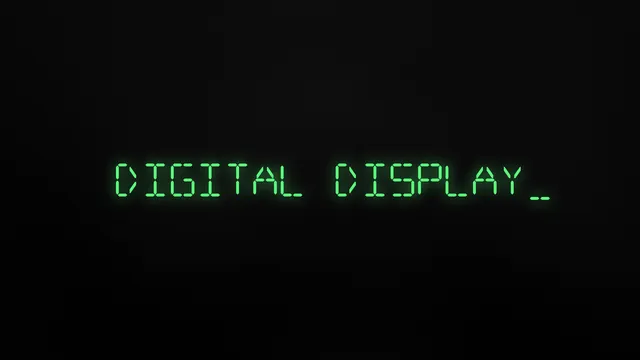
Install one from Graphics and Titles > Install Motion Graphics Template and drag it from the Essential Graphics panel onto your timeline. Type your line in Essential Graphics and set when the typing starts and ends.
Typewriter effect in DaVinci Resolve
This works in the free version too.
- Drag a Text+ title from Effects > Toolbox > Titles onto the track above your footage, and type your line.
- In the Inspector, find Write On. Leave Start at 0, set End to 0 and click its keyframe diamond.
- Move ahead about two seconds and set End to 1. The gap between the two keyframes is your typing speed.
The DaVinci Resolve templates are .drfx files built in Resolve 20.
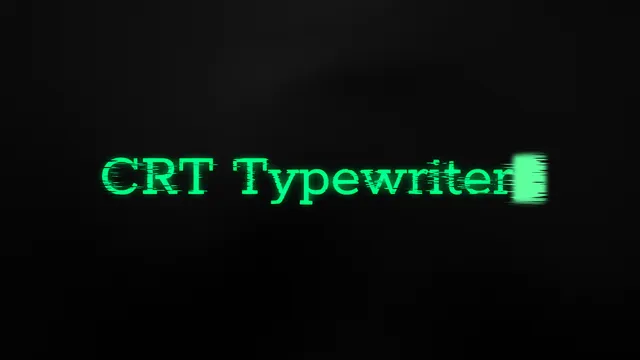

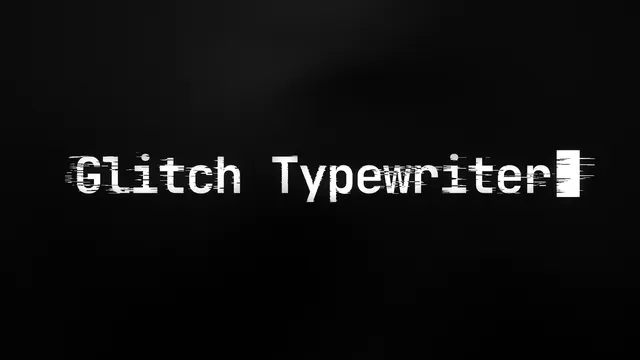
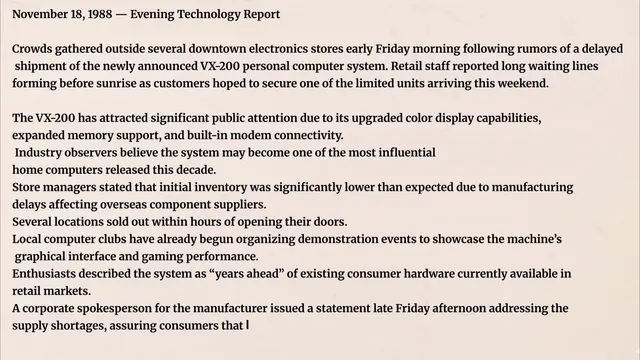
Double-click the .drfx file and click Install. Find the template in the Effects library, drag it onto your timeline and type your line in the Inspector. Under Advanced Controls, choose letter or word typing and set Speed, the number of frames per letter. Lower is faster.
Typewriter effect in After Effects
- Select your text layer.
- In Effects & Presets, open Animation Presets > Text > Animate In and double-click Typewriter.
- Press U to show its two keyframes, and drag the second one to change the speed.
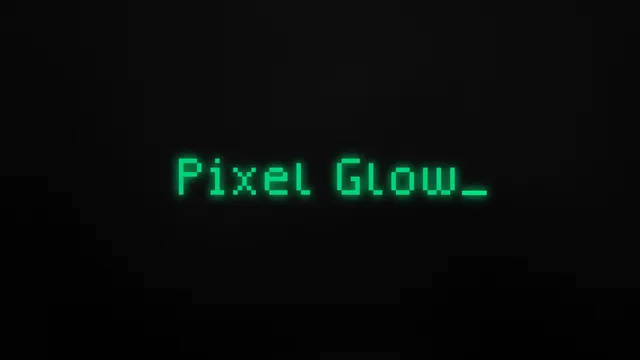
The preset has no cursor. The After Effects templates include one, plus a Control Panel layer: select it and press F3 to change the typing mode, the timing and how the cursor blinks.
Add the sound
Text typing on screen feels empty without the clack of keys. Put a typewriter sound under the reveal, trim it to the same length, and add a small bell when the line ends.
Questions people ask
Is there a free typewriter effect?
Yes. The built-in tools in Premiere Pro 25.5 and later, DaVinci Resolve (including the free version) and After Effects cost nothing extra. The styled templates on MotionVault need a plan.
Why does the typewriter effect stop working in Premiere Pro?
Typewriter Impacts is a transition, and Premiere applies transitions after effects. A drop shadow or glow on the same clip can break it. Nest the text clip with the transition on it, then add the effect to the nest.
Can the text type word by word instead of letter by letter?
Yes. In After Effects, open the Typewriter preset's Range Selector, go to Advanced and set Based On to Words. Every MotionVault typewriter template has a word mode too.
See all typewriter animations for Premiere Pro, DaVinci Resolve and After Effects.